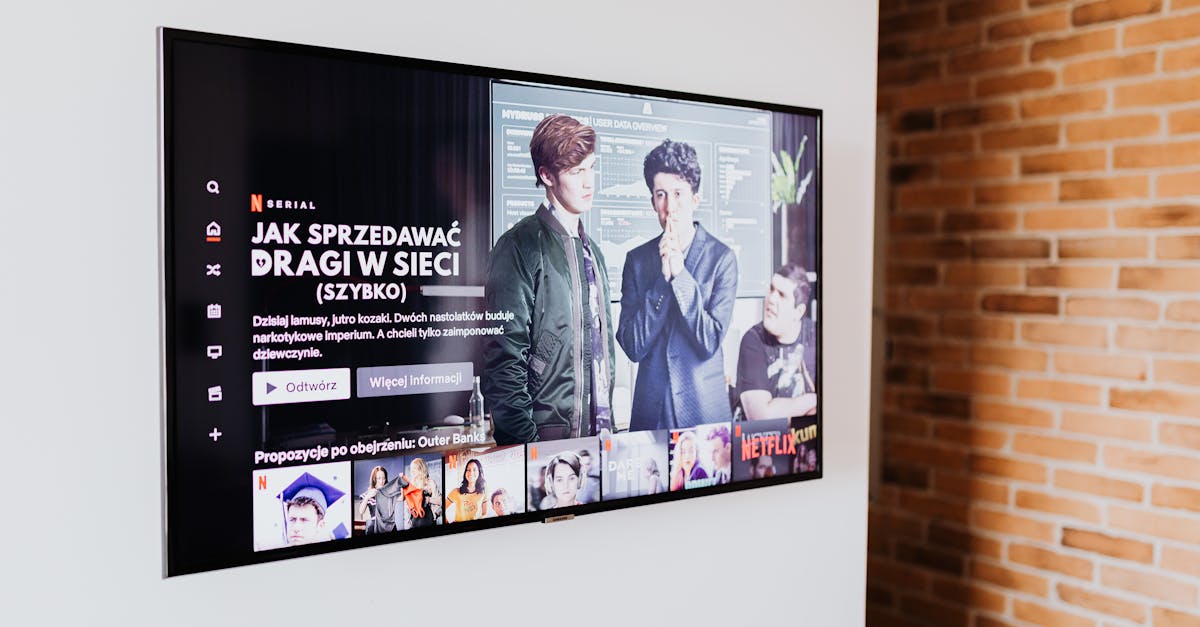
3 Non-Obvious Reasons Your Smart TV Is Slower Than Advertised
You bought a new smart TV, excited for lightning-fast app launches, smooth streaming, and seamless navigation. But a few months in, or sometimes even straight out of the box, it starts to feel… sluggish. Apps take ages to load, switching inputs is a test of patience, and even basic menu navigation feels like slogging through quicksand. The promise of cutting-edge technology gives way to frustrating delays.
I’ve been there. My first smart TV, a few years back, started strong. Then, after a couple of software updates and installing a handful of apps, it became noticeably slower. I blamed the manufacturer, then my internet, then my streaming services. It wasn’t until I started digging deeper, beyond the obvious culprits, that I uncovered the true, non-obvious reasons behind the slowdown. What changed everything for me was realizing that many of these issues aren’t about your internet speed or the age of your TV; they’re about how the TV’s internal systems are designed and, crucially, how we interact with them. Understanding these overlooked factors can transform your smart TV experience from frustrating to truly fluid.
Key Takeaways
- Background app processes, not just active usage, consume significant TV resources and impact performance.
- The accumulation of cached data and temporary files clogs your TV’s internal storage, slowing it down.
- Automatic software updates, while essential, can introduce new bugs or increase system demands, causing unexpected slowdowns.
1. Background App Refresh and Dormant Processes
Most people assume that if an app isn’t actively running on screen, it’s not consuming resources. In my experience, this is one of the biggest misconceptions about smart TV performance. Just like on your smartphone, many smart TV apps run processes in the background, even when you’ve ‘closed’ them or switched to another input. These dormant processes, often designed to keep content fresh or prepare for faster loading, silently chew through your TV’s limited RAM and processor cycles.
I once noticed my TV getting particularly sluggish after a weekend movie marathon. I hadn’t explicitly ‘closed’ any apps; I just hit the home button and moved on. What I discovered through trial and error was that apps like Netflix, Hulu, and YouTube were still holding onto memory, running small background tasks, and even occasionally fetching new content. My TV, which had a relatively modest 2GB of RAM, was quickly bogged down. The mistake I see most often is treating smart TV apps like traditional cable channels – you switch away, and they’re gone. But they’re not.
What changed everything for me was adopting a habit of force-quitting apps I wasn’t actively using. Most smart TV operating systems (like Android TV, WebOS, or Tizen) have a way to do this. For example, on many Android TVs, you can go to Settings > Apps > See all apps, select the app, and then choose Force stop. On WebOS or Tizen, you might need to highlight the app, press and hold the ‘OK’ or ‘Enter’ button, and then select ‘Close’ or ‘Exit’. It sounds tedious, but making this a routine for memory-hungry apps significantly improved my TV’s responsiveness. It’s like giving your TV a quick, internal system reset without the full reboot.
2. Bloated Cache and Accumulated Temporary Files
Another silent killer of smart TV performance is the accumulation of cached data and temporary files. Every time you stream a show, browse a menu, or even just turn on your TV, it creates temporary files. These files are designed to speed up future access to the same content or functions. Think of it like crumbs left behind after a meal – a few are fine, but an entire feast’s worth of crumbs will make your counter sticky and hard to work on.
In my experience, this problem is compounded by the fact that smart TVs rarely have robust, user-friendly cache-clearing tools. Unlike a computer where you might regularly run disk cleanup, TVs tend to hide these functions deep in menus, if they exist at all. Over months, these caches can grow to several gigabytes, particularly for streaming apps that pre-buffer content or download thumbnails and metadata. My TV started showing noticeable lag when browsing my streaming library, with images taking longer to load and scrolling becoming choppy. This was a clear sign of a clogged internal storage drive.
The concrete before/after example for me was clearing the cache on my primary streaming app. It was responsible for almost 3GB of accumulated data. After clearing it (found under Settings > Apps > [App Name] > Clear cache), the app launched faster, browsing content was snappier, and even my overall TV menu felt more responsive. This isn’t a permanent fix – the cache will rebuild – but it’s a powerful tool to regain performance. I now make it a point to clear the cache for my most-used streaming apps every few weeks. If individual app cache clearing isn’t available, a full factory reset (which I’ll discuss later) often becomes the only comprehensive solution, but it’s a nuclear option.
3. The Double-Edged Sword of Automatic Software Updates
Software updates are crucial for security and new features. We all know this. But what many people overlook is that these updates, while beneficial, can be a major, non-obvious contributor to smart TV slowdowns. There are two main reasons for this:
First, new software versions often come with increased system demands. Features get more complex, user interfaces become more graphical, and background processes expand. A TV manufactured three years ago with a certain amount of RAM and processor power might have run perfectly on its initial software. But subsequent updates, designed for newer, more powerful hardware, can push older models beyond their comfortable limits. It’s like trying to run the latest operating system on a five-year-old laptop – it works, but it’s not fast.
Second, and more frustratingly, updates can introduce new bugs or inefficiencies. In my experience, I’ve had updates that promised performance improvements but instead led to more frequent crashes, slower app switching, or general system instability. Developers can’t always test every update across every single model and hardware revision. What fixes a bug on one TV might create a new performance bottleneck on another, slightly different model.
What changed everything for me was disabling automatic updates and taking a more deliberate approach. While I don’t recommend skipping updates entirely for security reasons, I now wait a week or two after an update is released before manually installing it (Settings > System > Software Update). This gives me time to check online forums or reviews for other users reporting issues. If an update does cause a significant slowdown, the only real recourse is often a factory reset (and hoping the next update is better) or, in rare cases, a firmware rollback if the manufacturer provides that option (which is highly uncommon for consumer TVs).
Frequently Asked Questions
How often should I reboot my smart TV?
I recommend a full power cycle (unplugging it from the wall for 60 seconds) once a week, or whenever you notice a significant slowdown. This clears volatile RAM and forces all processes to restart fresh, often resolving minor performance glitches that accumulate over time.
Will buying an external streaming device (like a Roku or Fire Stick) make my smart TV faster?
Yes, in my experience, this can be a game-changer. External streaming devices have their own processors, RAM, and dedicated operating systems. They bypass your TV’s internal smart platform, offloading the processing burden. While your TV’s basic menu navigation might still be sluggish, your streaming experience through the external device will almost certainly be much faster.
Is it better to use Wi-Fi or an Ethernet cable for my smart TV?
For optimal performance and stability, an Ethernet cable (wired connection) is always better than Wi-Fi, especially if your TV is in a data-intensive use like 4K streaming or gaming. Wi-Fi can suffer from interference, distance limitations, and congestion, leading to buffering and slower load times, even if your TV isn’t inherently slow.
Does disabling smart features (like voice control or content recommendations) improve performance?
Yes, absolutely. These features, while convenient, run background processes that consume resources. In my experience, disabling voice assistants, personalized content recommendations, and any always-listening features can free up precious RAM and CPU cycles, leading to a noticeable improvement in overall responsiveness. Check your TV’s settings for ‘Privacy’ or ‘Smart Features’ to toggle these off.
Will a factory reset fix all my smart TV’s performance issues?
A factory reset is the most drastic step, but it often works because it wipes all user data, installed apps, and cached files, returning the TV to its out-of-the-box state. This can resolve slowdowns caused by accumulated clutter or corrupted software. However, it won’t fix hardware limitations or fundamental inefficiencies introduced by a new software update if the TV’s hardware simply can’t keep up with the latest features.
Conclusion
Your smart TV doesn’t have to be a source of constant frustration. By understanding these non-obvious reasons for slowdowns – background app processes, bloated caches, and demanding software updates – you can take proactive steps to reclaim its speed. Force-quitting apps, regularly clearing caches, and managing updates deliberately can make a significant difference. And if all else fails, consider an external streaming device to offload the heavy lifting. Don’t settle for sluggishness; a few intentional changes can transform your viewing experience.
Written by Chloe Vance
Daily routines and practical life hacks
With experience in journalism and a passion for simplifying the complex, Chloe crafts accessible advice for all.
You Might Also Like
The 20-Degree Rule for Home Heating and Cooling: Why Most Advice Misses the Mark
Discover why the conventional 20-degree heating and cooling rule for your home often falls short and what actually works for comfort and savings.

A Beginner's Guide to Simple Home Meal Planning
Discover a layered approach to meal planning that actually sticks, even for beginners. Learn to save time, reduce waste, and enjoy home-cooked meals.

A Practical Checklist for Navigating Online Returns Without the Hassle
Streamline your online return process with this practical checklist. Minimize stress and maximize successful refunds for your purchases.